PERSONAL MODS // ADDING TO PREEM EDITION#
> INITIATING SETUP SEQUENCE...> TARGET: MANUAL MOD INSTALLATION

Want to add your own personal mods on top of Preem Edition? No problem — just do it right, choom. This guide walks you through safely adding mods that aren't part of the collection, without risking your main setup.
"Cool ain't free. Neither's a build that doesn't break the second you touch it." — Rogue Amendiares
Read this before you touch anything
Always work off a cloned profile, never your main one. If something breaks, you want a safe fallback to switch straight back to.
Mods we don't recommend using with PE
- New Game Plus - Natives - Adds a hard requirement in order to load the save (If mod isn't always enabled your save won't load), and messes with the AI Difficulty mods in the collection.
- New Lifepath Intro - Fresh Start - Similar issue to above, can cause issues if not enabled at all times, especially dialogue options (You will never see any life-path specific dialogue options).
Credit
This guide was written by mquiny, thank you for putting it together!
Before you start#
- I know which mod(s) I want to add
- I've cloned my Preem Edition profile so my main one stays untouched
Step-by-step#
Tick a step off once you've finished it — your progress is saved in this browser, so it's still here if you close the tab and come back later.
Step 1: Create a cloned profile
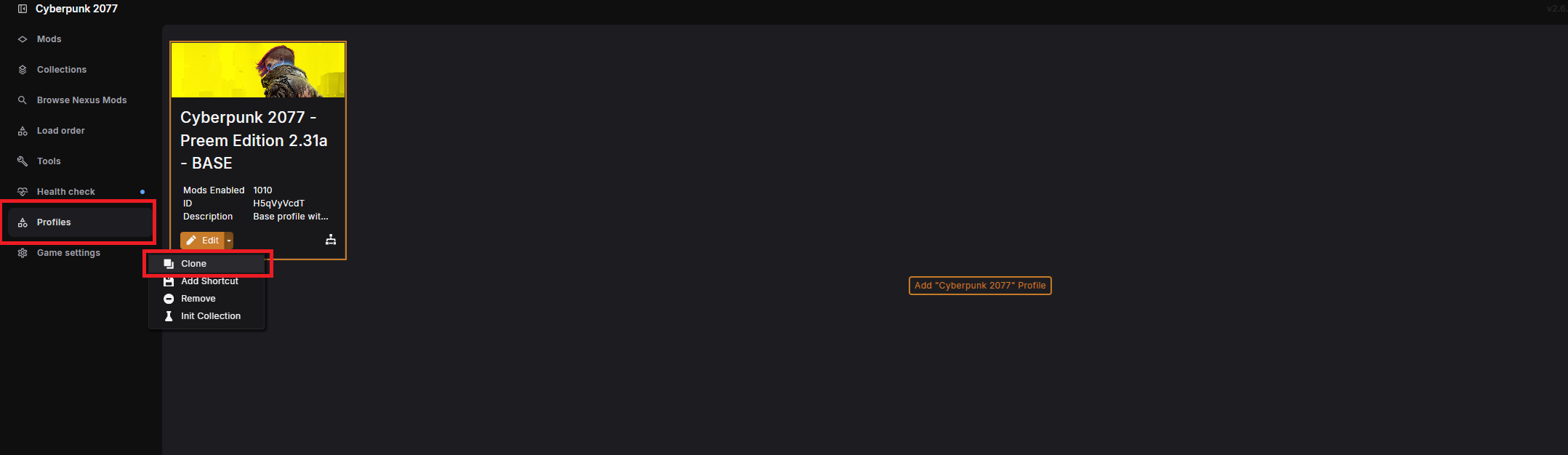
Create a cloned profile in Vortex. This ensures you can safely make changes on top of the Preem Edition collection, and have a safe, working fallback profile if something messes up.
📷 Show me
Tip
To help keep track of your profiles, rename them to something you'll remember, so it's easy to tell which one is your safe fallback. For example:
Preem Edition — Base CollectionPreem Edition — Additional Mods
- Cloned profile created and renamed
Step 2: Check the mod page
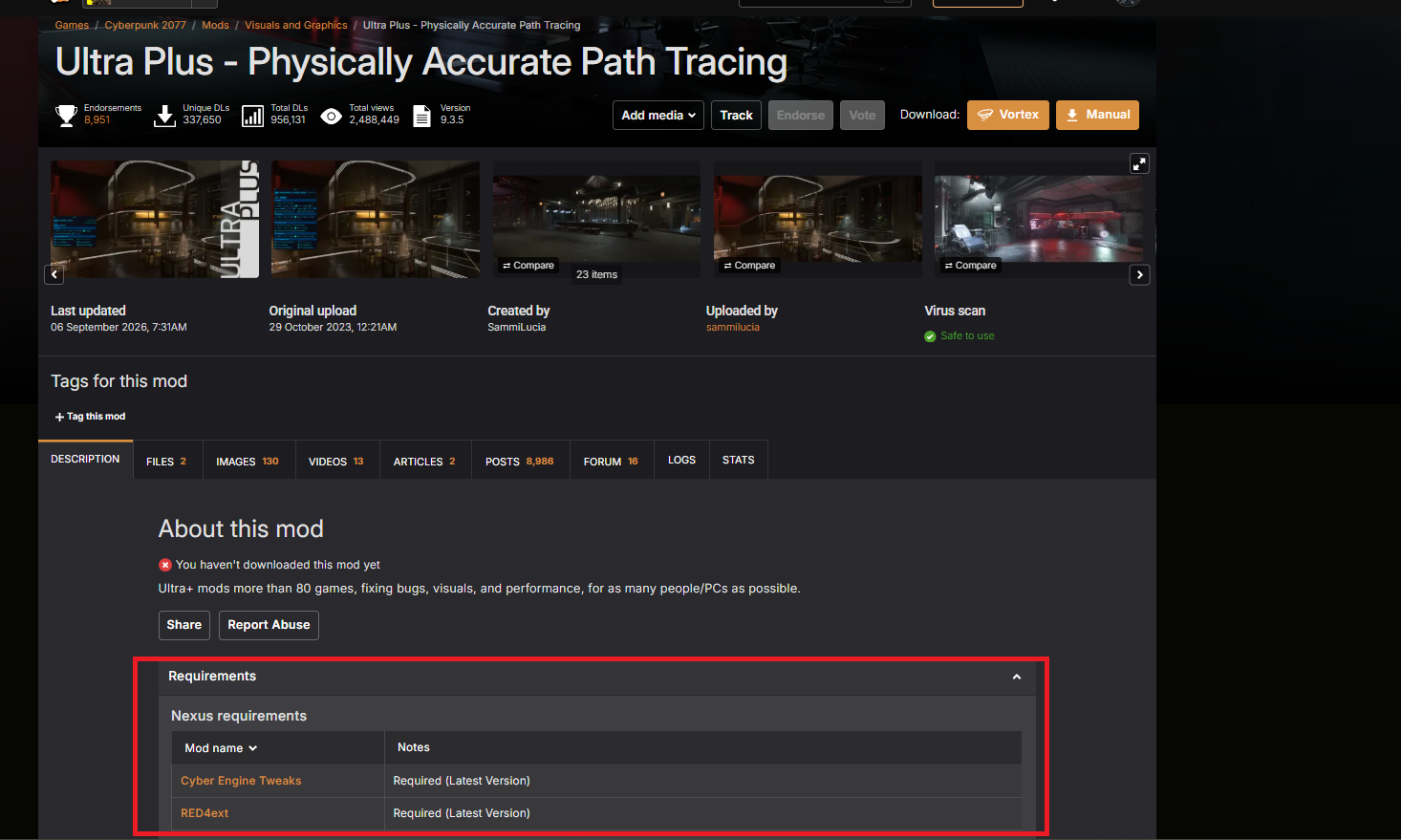
With your selected mod, check its Nexus page for any additional dependencies it needs.
For example: installing Ultra Plus, its "Requirements" section lists Cyber Engine Tweaks and RED4ext — these are core frameworks already included in the collection, so nothing extra to do there. But if a dependency listed isn't already in the collection, you'll need to install that too, or the mod won't work.
📷 Show me
Danger
Have a quick read of the mod description for any conflicts the mod author has flagged. If it conflicts with something already in the collection (e.g. a mod like Third Person Perspective), you'll need to decide which one to keep — unless you set up a conflict rule to have them work together.
- Checked the mod's requirements and any flagged conflicts
Step 3: Check the game runs
Now that your first manual mod is installed, boot up the game and check that it's detected and working, with no crashes.
Warning
If you start experiencing issues, you've got a couple of options:
- Remove the mod you just installed
- Check out How to Bisect to identify which mod it could be conflicting with
- Game boots and the new mod is working correctly
Step 4: Repeat for every mod you want to add
Now that your first mod is installed, repeat from Step 2 to add more.
Tip
If you're confident the mods you're adding won't conflict with anything in the collection, feel free to install them without constantly re-checking that the game still boots after each one.
- Added all the personal mods I wanted, one at a time
Step 5: Enjoy your new experience
Well done, choom
You've successfully installed additional mods on top of Preem Edition — enjoy your Preem Edition... Deluxe Edition.