CHANGING YOUR BODY MOD // RE-JACKING THE CHASSIS#
> INITIATING SETUP SEQUENCE...> TARGET: FEM V BODY MOD SWAP
Want to change Fem V's body? No problem. Preem Edition is built to let you customize your game, including swapping out the body mod your character uses.
This guide uses ANGEL Body as the example, but the same general process applies when switching to any other body mod.
"Changing your ride, doesn't mean you change who's driving." — Panam Palmer
Read this before you touch anything
Body mods can have their own requirements and clothing refits. Always read the requirements and compatibility information on the body mod's own Nexus page before installing it.
Credit
This guide was written by Cara, thank you for putting it together!
Before you start#
- I know which body mod I'm switching to
- I've checked that mod's Nexus page for its own requirements and clothing refits
What's the difference between a body mod and a body rig?
- A body mod replaces V's actual body mesh and/or skin textures with a new one — it changes what the body geometrically is, which is why vanilla clothes can need refitting to fit it properly. (Most body mods have separate refit mods to go with them.)
- A body rig keeps the vanilla body mesh but reshapes it by adjusting the underlying skeleton/bone weights (proportions like bust, waist, hips), so it's more like a set of sliders on the existing body. Since it's still the same mesh clothes were built for, clothing compatibility is generally much less of an issue.
Step-by-step#
Tick a step off once you've finished it, your progress is saved in this browser, so it's still here if you close the tab and come back later.
Step 1: Disable mods connected to your current body
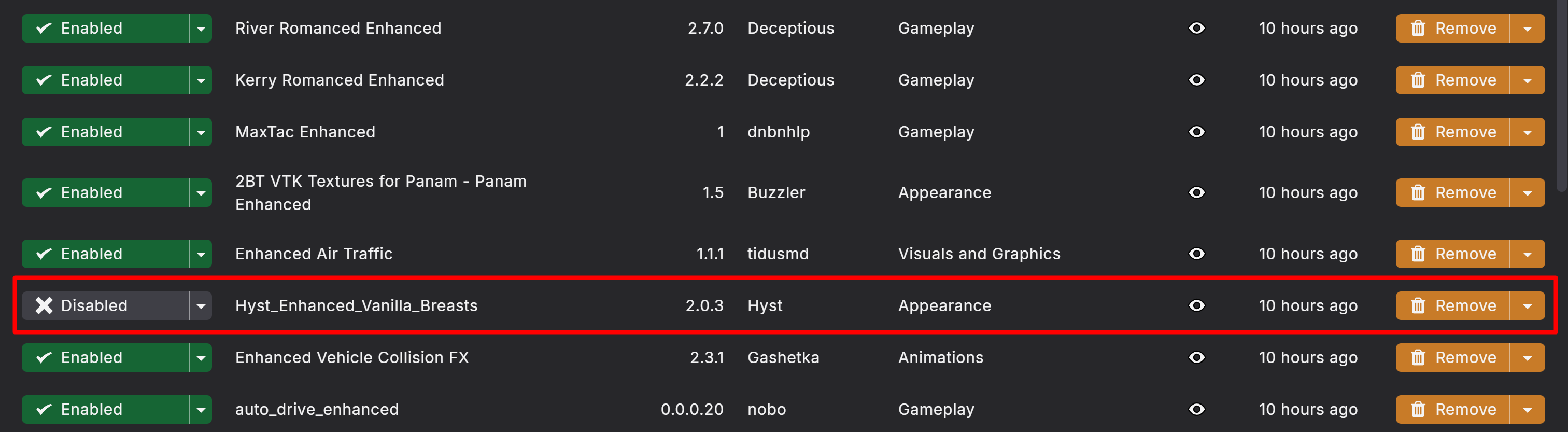
Before installing a new body, disable the mods that are specifically tied to your current body mod. This can include:
- Body-specific clothing refits (in this collection, the clothing that's added uses automatic refits, so you don't have to disable any clothing mods)
- Body-specific appearance mods
- Body-specific vanilla clothing refits (again, automatic refits in this collection mean you don't need to disable clothing mods)
- Other mods that directly replace or modify the current body (e.g. Enhanced Vanilla Body, or Tasty Body Rig if you want a different rig)
📷 Show me

What about Unique V Framework?
Unique V makes it so that only V's body is affected by the body mod you install. Without it, every NPC using the same body type as V will use your chosen body mod too.
- If your new body mod does not support Unique V, disable Unique V.
- If it does support Unique V, you can leave it enabled.
Note
You don't need to disable every clothing mod in Preem Edition, only disable mods that are specifically dependent on, or designed around, your old body. This matters because refits made for another body can conflict with your new one. The ANGEL vanilla refit, for example, specifically recommends removing vanilla refit replacers intended for other body mods (Nexus Mods).
- Disabled any mods tied specifically to my old body
Step 2: Check your new body mod's requirements
Go to your new body mod's Nexus page and check its Requirements section. Different body mods can require different frameworks, so don't assume every body uses the same ones.
📷 Show me
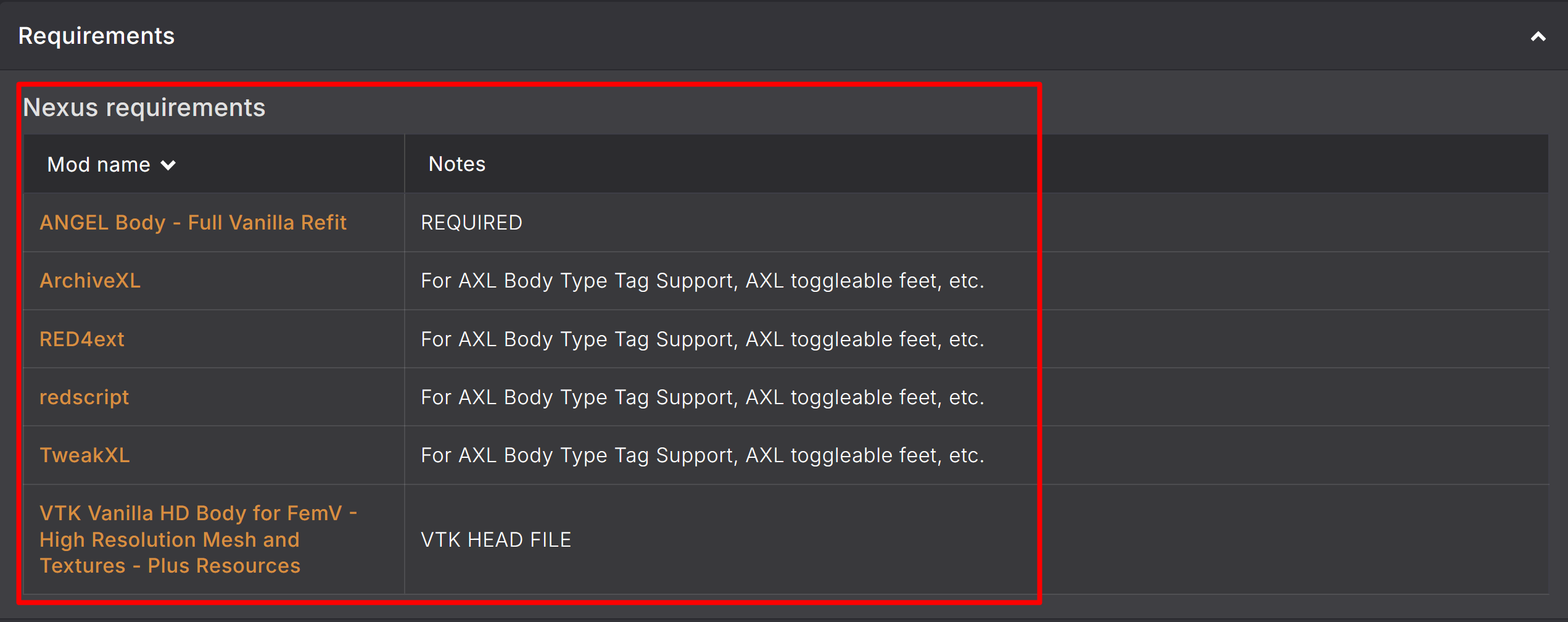
For ANGEL's vanilla clothing refit, the required core frameworks are:
- RED4ext
- ArchiveXL
- TweakXL
- redscript
The refit also requires the ANGEL body itself (Nexus Mods).
Tip
Some of these requirements may already be installed as part of Preem Edition, you don't need to install another copy if the required framework is already present and up to date.
- Checked my new body mod's requirements on Nexus
Step 3: Download any missing requirements
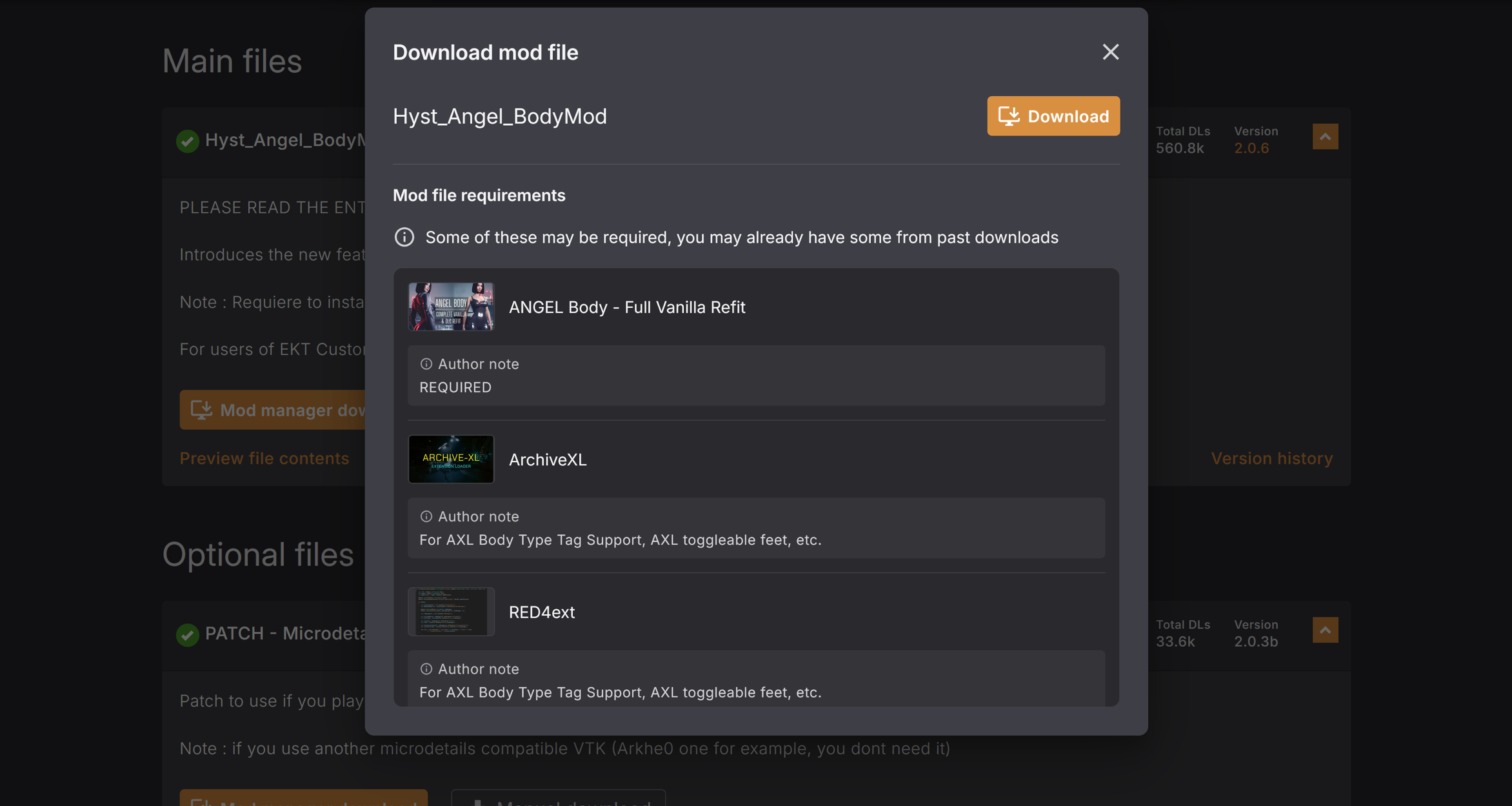
Download anything listed as a requirement that isn't already installed in your Preem Edition setup, and install it before installing the body mod itself. If you're using Vortex, you can install these normally through Vortex, just make sure they're enabled and deployed afterward.
- Installed any missing requirements and confirmed they're enabled/deployed
Step 4: Download the new body mod
Now download your new body mod (ANGEL Body, in this example) from its Nexus page, install it through Vortex, and enable it. At this point you've replaced your previous body.
📷 Show me
Don't install every available body variant
If the body mod offers different versions or options, read the mod description and choose the version you actually want. Only install the options you need.
- Downloaded and enabled the new body mod
Step 5: Check in-game
Make sure all the mods for your new body are activated and deployed. If Vortex didn't deploy automatically after installation, hit Deploy Mods again.
📷 Show me


Now launch Cyberpunk 2077 and check your V. Make sure:
- V's body is appearing correctly
- There are no obvious missing body parts
- The game loads normally
- Your character isn't still using the previous body
Looking good?
If everything checks out, your new body is installed and working.
Step 6: Have fun and find some new clothes
Now comes the fun part. Once you've confirmed your new body works, you can start looking for clothing mods and refits made for it.
When downloading clothing, always check which body it was made for, look for "ANGEL Body compatible" (or the equivalent for whichever body you installed), or a body-specific refit. A clothing mod made for another body may not fit correctly and can cause clipping or other visual problems.
There are also dedicated refits for vanilla and DLC clothing, for example, ANGEL Body - Full Vanilla Refit was made specifically to adapt vanilla and DLC clothing to ANGEL Body (Nexus Mods).
- Found clothing/refits compatible with my new body
That's it
You do not need to reinstall Preem Edition from scratch just to change your body. The important part is making sure your body, body-specific refits, and clothing are all compatible with each other.
TLDR#
Changing your body in Preem Edition is basically:
- Disable mods connected to your current body
- Check the new body's requirements
- Download any missing requirements
- Install the new body
- Launch the game and check that it works
- Find some clothing made for your new body