LET'S GO NUCLEAR // FULL WIPE#
> ARMING DEVICE...> TARGET STATE: SCORCHED EARTH / FACTORY FRESH
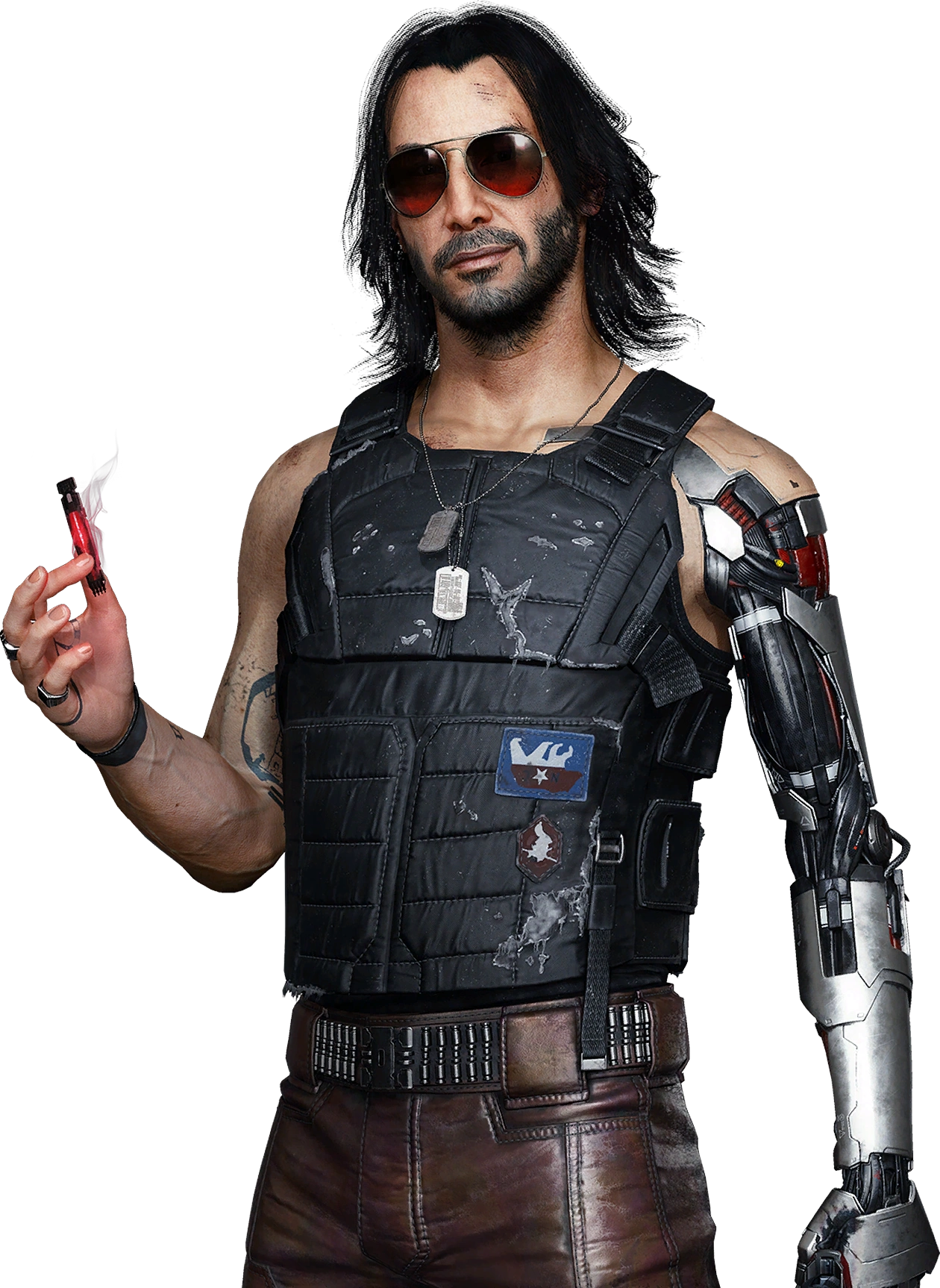
the Clean Install guide is a quick fix that strips out the common traces of modding. Going nuclear is the full wipe, on top of the Mod Remover run, you'll also delete certain folders inside your Cyberpunk 2077 install directory by hand so nothing survives.
"Bushido II, bomb’s name was what again?" Johnny Silverhand
Who this is for
- Anyone whose Clean Install didn't fix the problem, was recommended to by the Preem Devs, or who wants an absolutely guaranteed blank slate.
This deletes files
Warning: the folders you delete in this guide are permanent. Back up anything you want to keep before you start.
Before you start#
- I've backed up any save files I want to keep
- I've noted which personal mods I have installed outside the collection
- I've already tried the Clean Install guide
Step-by-step wipe#
Tick a step off once you've finished it, your progress is saved in this browser, so it's still here if you close the tab and come back later.
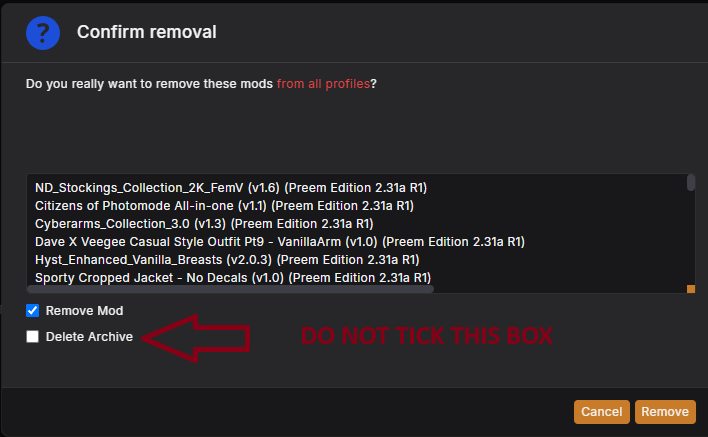
Step 1: Remove all mods and close Vortex
- Open up Vortex, and under Mods select all the mods (
Ctrl+A). - At the bottom of Vortex select Remove, then check Remove mod from the popup menu, don't select "Delete Archive".
If Ctrl+A doesn't work: select the top mod, scroll to the bottom, hold Ctrl and select the last mod, this will highlight them all.
You may have to do this multiple times if you still see mods in Vortex.
Force close Vortex
Once you've removed all mods, you must force close Vortex. Vortex must not be open or running while you run Mod Remover.
- All mods removed from Vortex and Vortex fully closed
📷 Show me
Step 2: Run Mod Remover
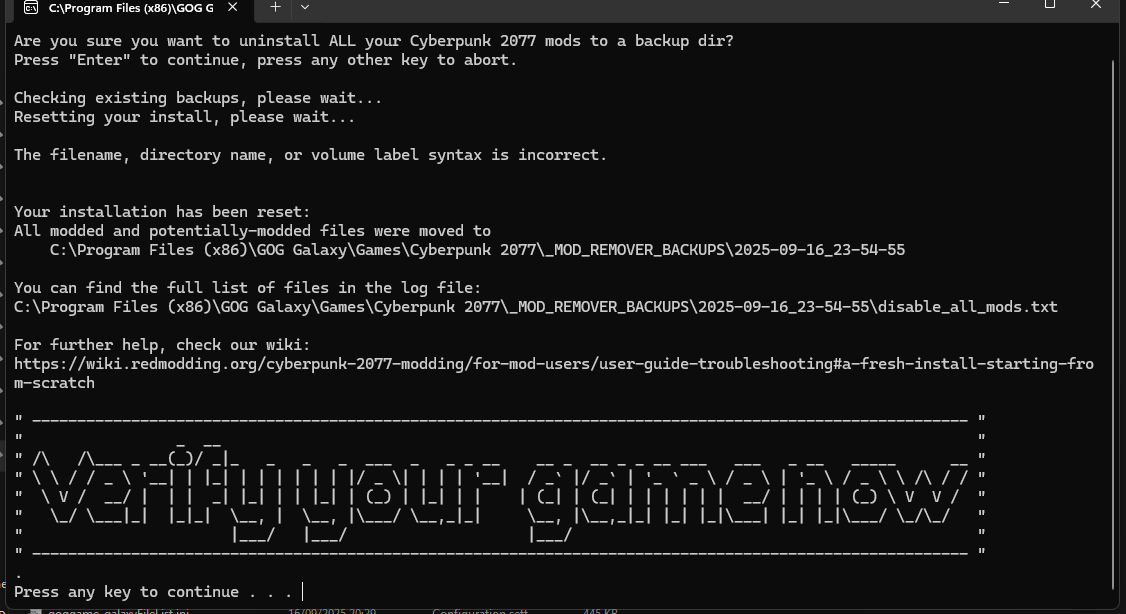
Download Mod Remover from Nexus, extract it into your game's root directory, and run either the .exe or .bat. Press Enter to create a backup and let it finish.
When it asks you to verify your game files, don't do that yet, we'll do it after the folder wipe.
- Ran Mod Remover and let it finish
📷 Show me
Step 3: Open your game install folder
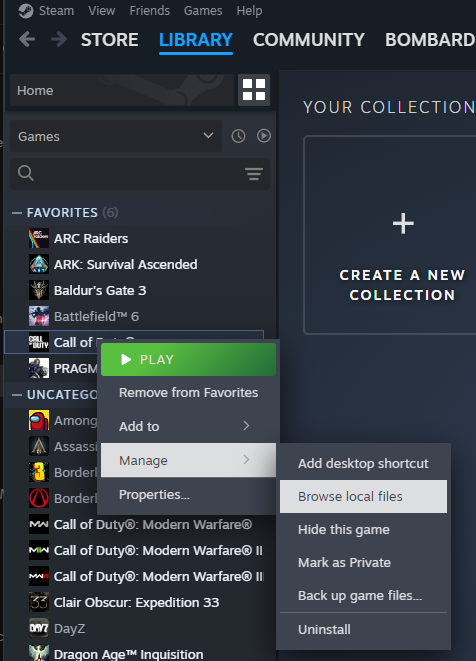
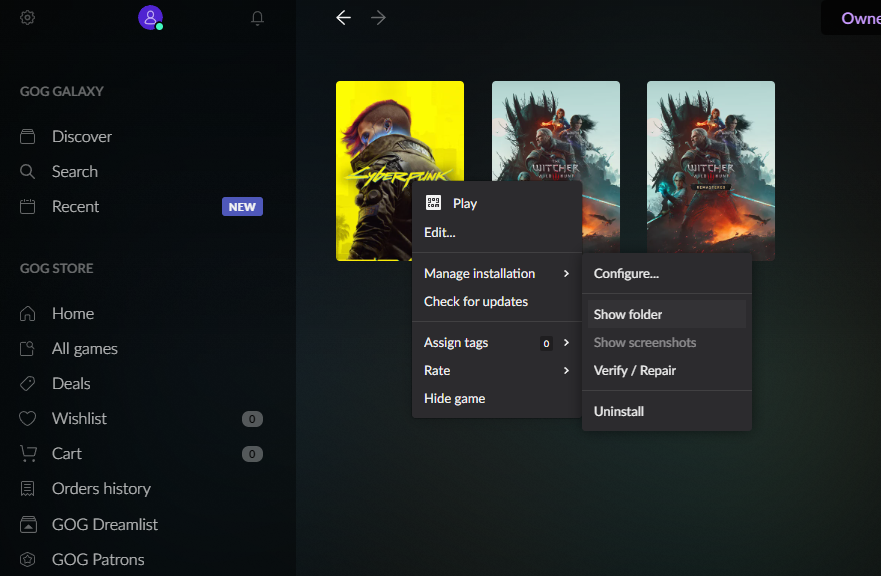
Open the folder where Cyberpunk 2077 is installed. The quickest way is through your game launcher:
Right-click Cyberpunk 2077 in your Steam Library, then go to Manage → Browse local files.
Right-click Cyberpunk 2077 in GOG Galaxy, then go to Manage installation → Show folder.
Prefer to browse there manually?
Open File Explorer and go to where you installed the game. Common default locations:
- Steam:
C:\Program Files (x86)\Steam\steamapps\common\Cyberpunk 2077 - GOG:
C:\GOG Games\Cyberpunk 2077 - Epic:
C:\Program Files\Epic Games\Cyberpunk2077
If you installed to a different drive or library folder, look there instead.
- Game install folder open in File Explorer
Step 4: Delete everything except the game data
This is permanent
Double check you're inside your Cyberpunk 2077 install folder before deleting anything.
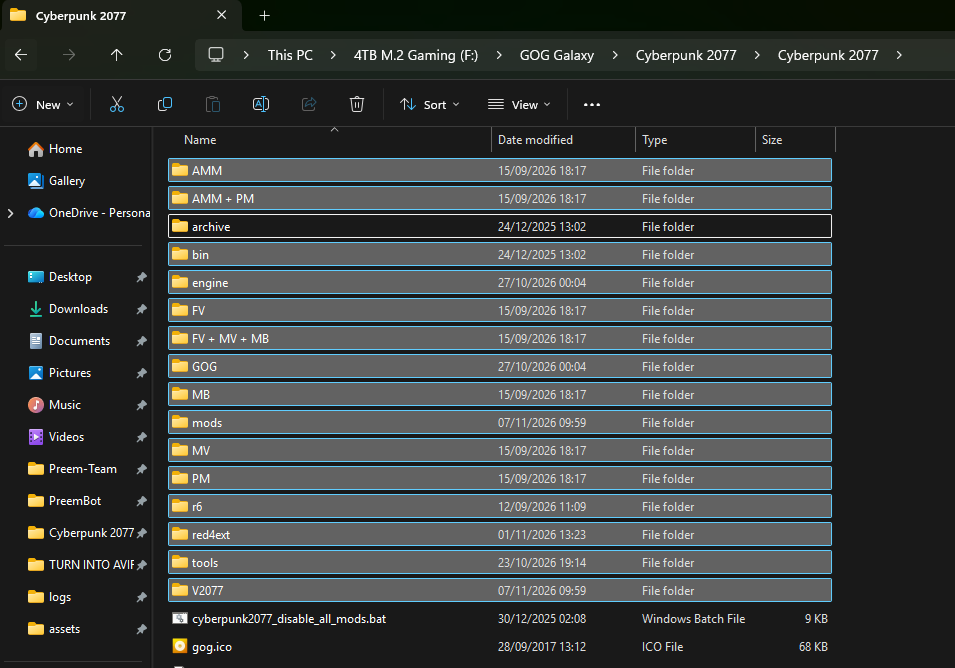
In the game's root folder, delete every folder except archive. This includes any leftover mod folders such as bin, engine, r6, red4ext, tools and V2077, along with anything else you see in there.
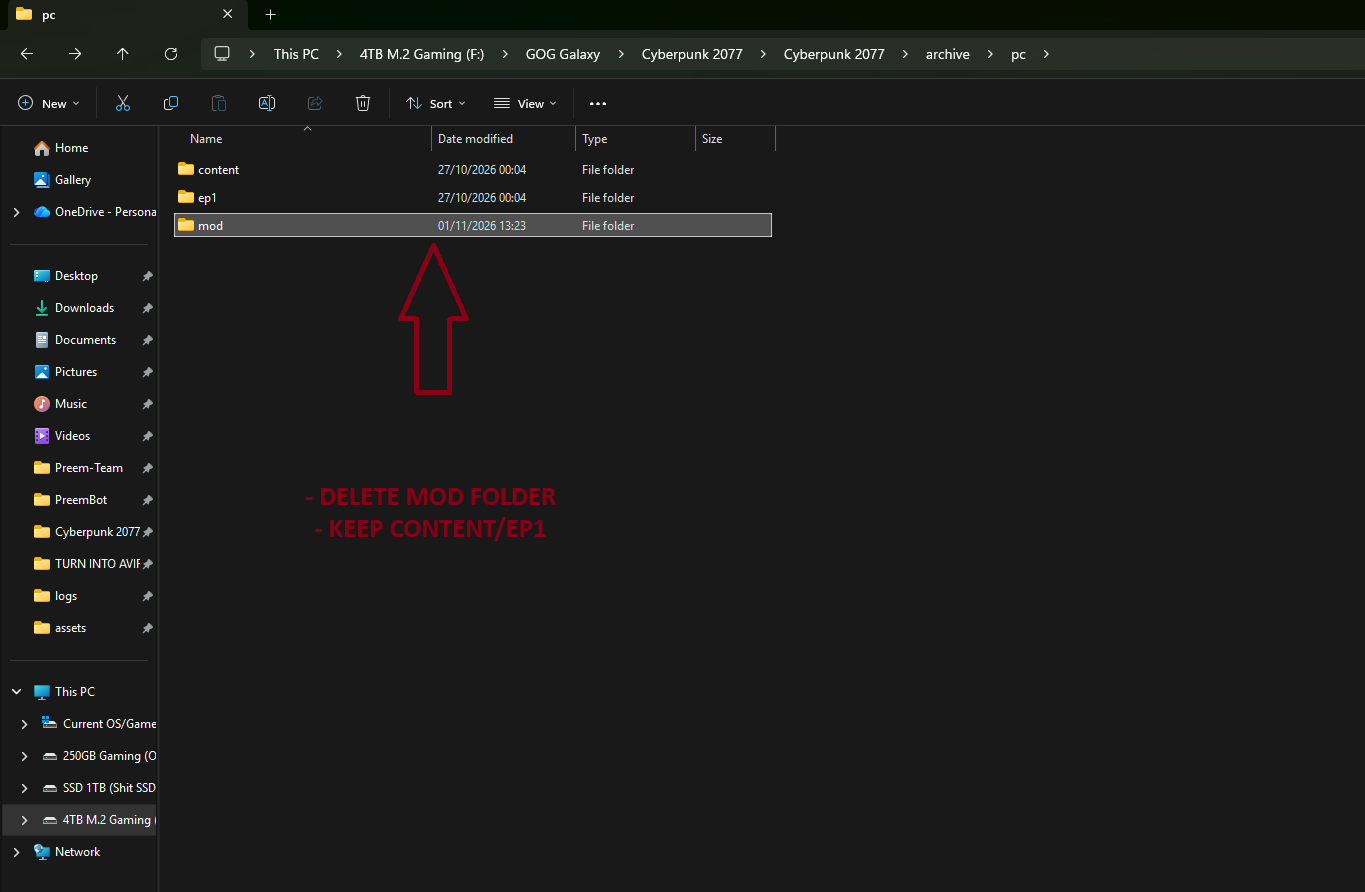
Then open archive → pc and delete everything except:
contentep1
These two folders hold around 90% of the game's data and are never modified by mods, so there's no need to redownload them. Everything else, including archive/pc/mod, goes.
- Every folder in the root deleted except
archive - Everything in
archive/pcdeleted exceptcontentandep1
📷 Show me
The game's root folder, delete everything except archive:
Inside archive/pc, delete everything except content and ep1:
Step 5: Verify game files
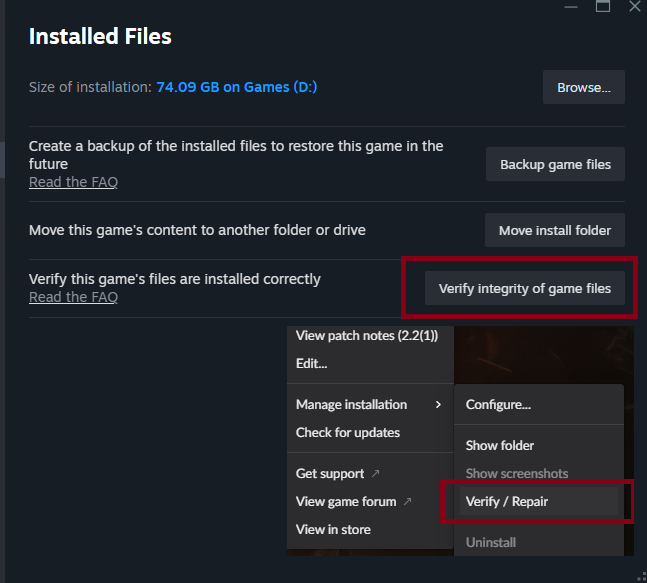
Now go into Steam/GOG/Epic and verify/repair your game files. This will redownload every file you just deleted and restore it to stock.
- Platform verification completed with no unresolved errors
📷 Show me
Step 6: Done, some final checks
Congratulations, you now have a factory-fresh Cyberpunk installation.
Do not open Vortex yet
First confirm your game boots in a vanilla state, using your default launcher (Steam/GOG), not Vortex.
Once you've confirmed it boots vanilla, re-add the collection from our Nexus page back into Vortex under a new profile (don't reuse your old profile).
- Game boots vanilla via Steam/GOG
- Collection re-added under a new Vortex profile
Detonation confirmed
You're back to a factory-fresh install. Head back to Installation whenever you're ready to mod again.
Still having issues?
Ask in the Preem Team Discord or check Troubleshooting.