CPE // UPDATING#
> INITIATING SETUP SEQUENCE...> TARGET: EXISTING INSTALL, LATEST REVISION

Already running Preem Edition and just need the latest revision? This is the guide for you, no need to reinstall from scratch every time.
"Relax, choom. It's a mod update, not a corpo hit squad." — Johnny Silverhand
Read this before you touch anything
If you've changed any mod settings yourself, make a note of what you changed so you can reapply them after the update, the Preem Config mod will overwrite any config changes made since the last update.
No personal mods installed?
If you haven't added any additional mods of your own, skip Steps 2 and 3, those are just there to help you identify and highlight your personal mods before the update.
Credit
This guide was written by mquiny, thank you for putting it together!
Step-by-step#
Tick a step off once you've finished it, your progress is saved in this browser, so it's still here if you close the tab and come back later.
Step 1: Rename your current profile (optional)
Before updating, rename your current profile to something you'll easily remember as a fallback, for example, Preem Edition, Before Update.
- Renamed current profile (or skipped, if not needed)
Step 2: Identifying personal mods
If you've added any personal mods, open the Mods tab in Vortex and select the small filter icon just to the right of the "Collection" filters. This separates mods included in Preem Edition from mods you've added yourself (personal mods won't have a collection assigned to them).
📷 Show me
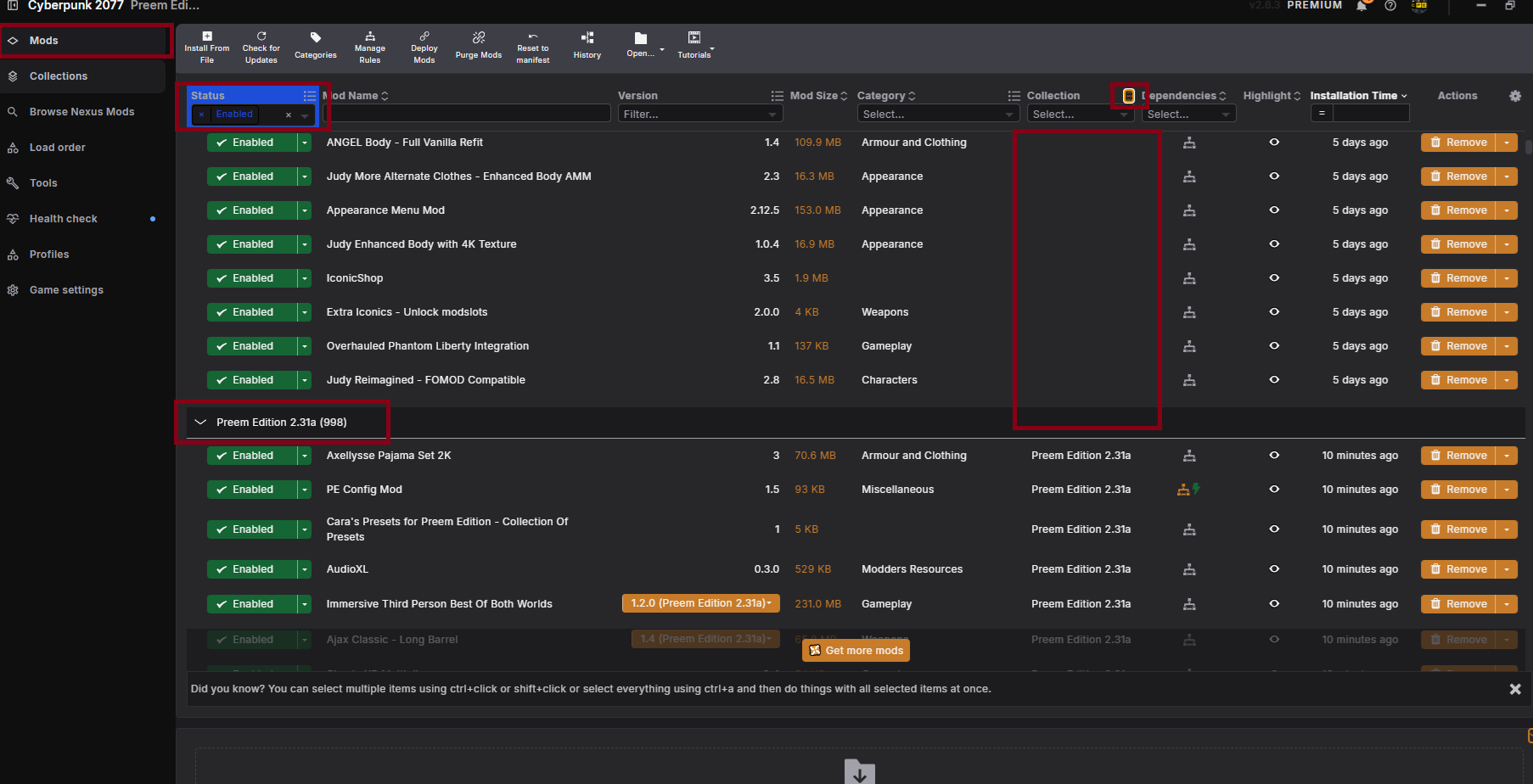
- Identified which mods are personal vs. part of the collection
Step 3: Highlighting personal mods
Now that you've identified your personal mods, use Vortex's highlight system to clearly mark them. This makes it easy to find and re-enable them once the collection update is done.
📷 Show me
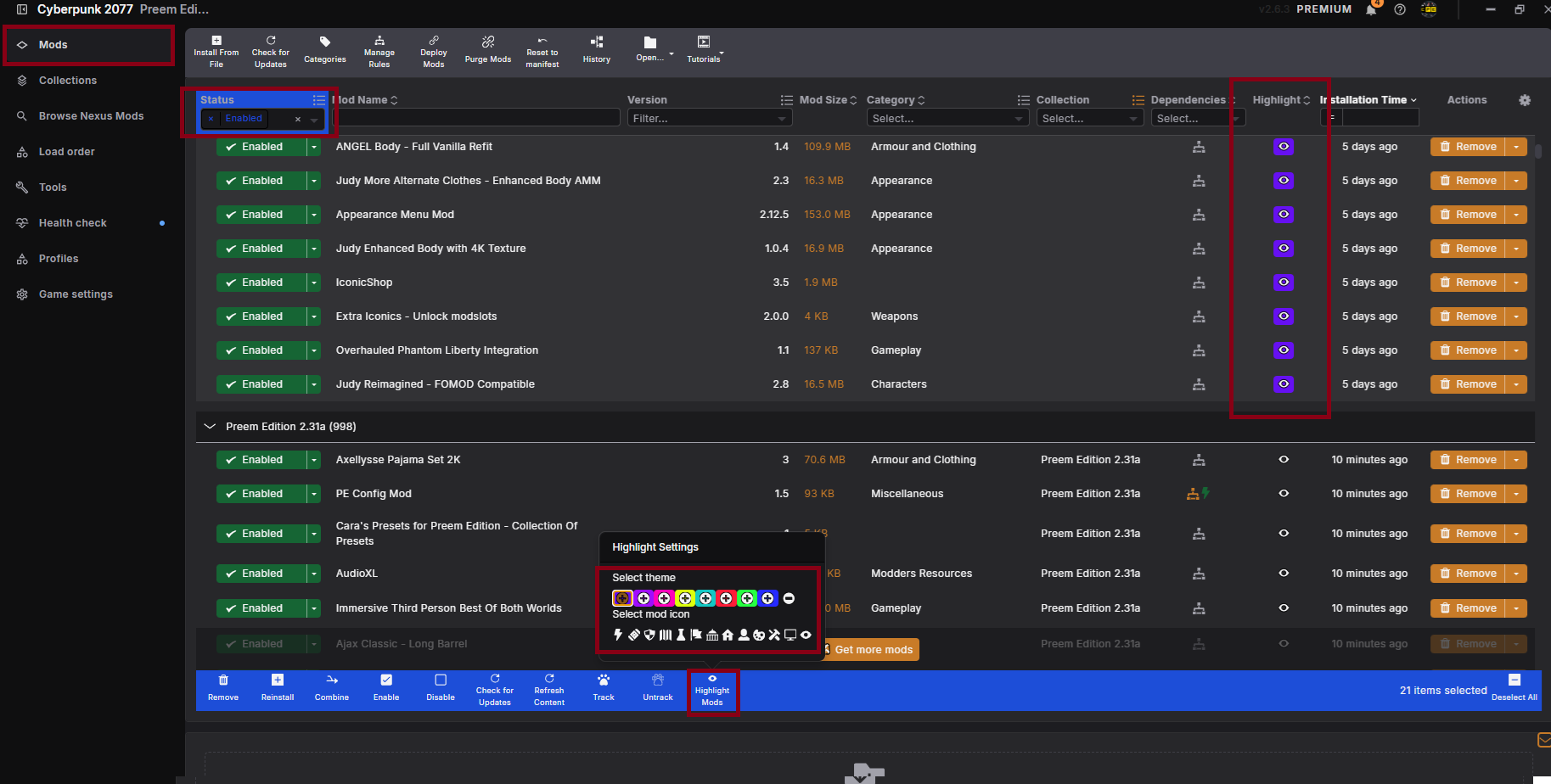
- Highlighted all personal mods
Step 4: Start the collection update
In Vortex, select the Collections tab. Under "Added Collections" you'll find Preem Edition, if an update is available, a button will appear at the top prompting you to update. Select it to start the update process.
📷 Show me
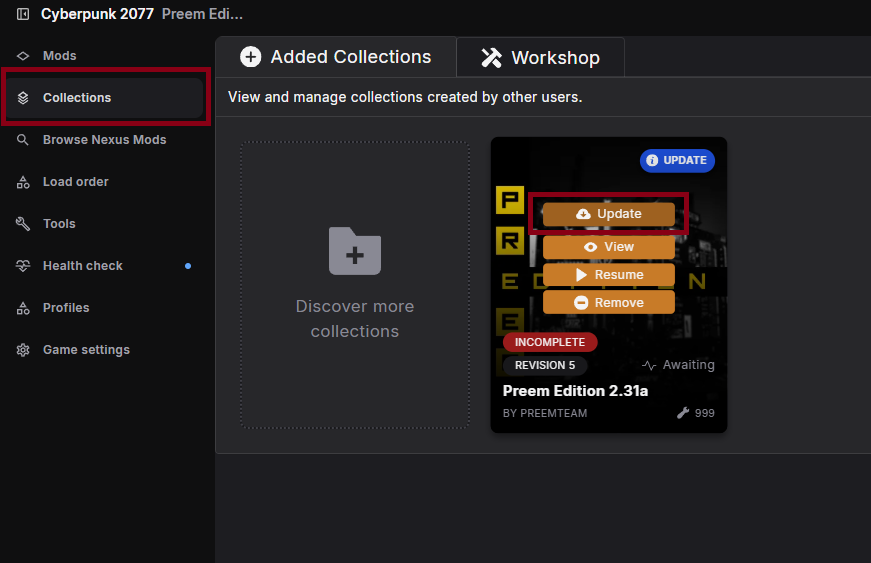
- Started the collection update
Step 5: Confirm the update
A popup will appear with a brief overview of the changes in this revision, along with quick links to the website and Discord if you need assistance.
📷 Show me
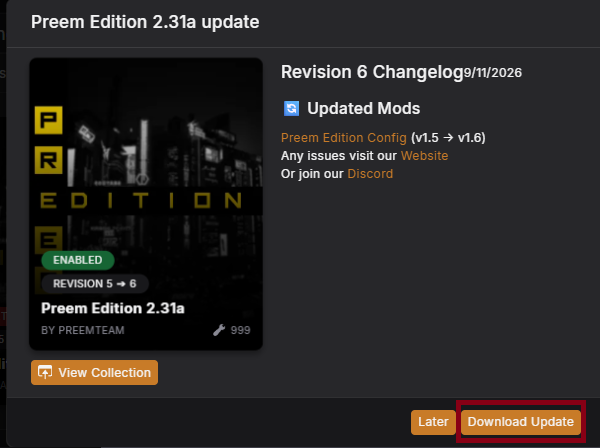
- Reviewed the update overview
Step 6: Remove mods from the old revision
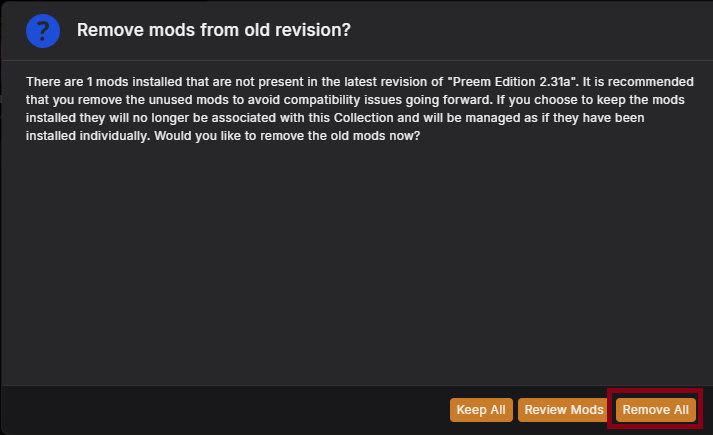
The next popup asks what to do with mods from the old revision. Always select to remove all of them, this clears out older versions, as well as mods that have been removed from the collection entirely.
📷 Show me
Danger
Choosing to keep old mods will cause issues, you'll end up with conflicting versions of mods enabled at the same time, which can cause crashes. If this happens, you'll need to perform a Clean Install.
- Selected to remove all mods from the old revision
Step 7: Select new profile
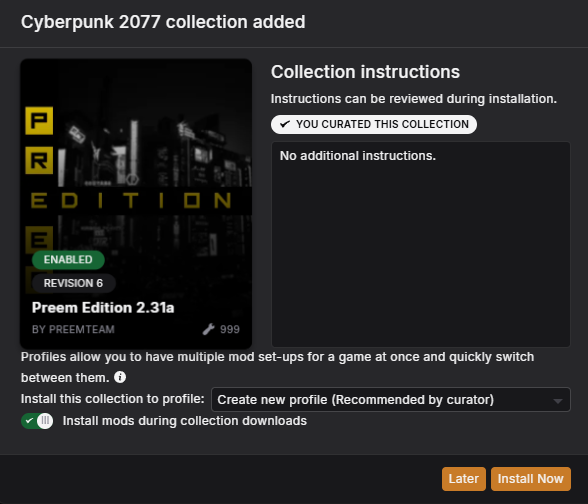
You'll be asked where to install the update. The option "Create new profile (Recommended by curator)" should already be selected, if not, select it, then click Install now.
📷 Show me
Info
Make sure "Install mods during collection downloads" is enabled to help speed up the update.
- Confirmed "Create new profile" and started the install
Step 8: Final popup
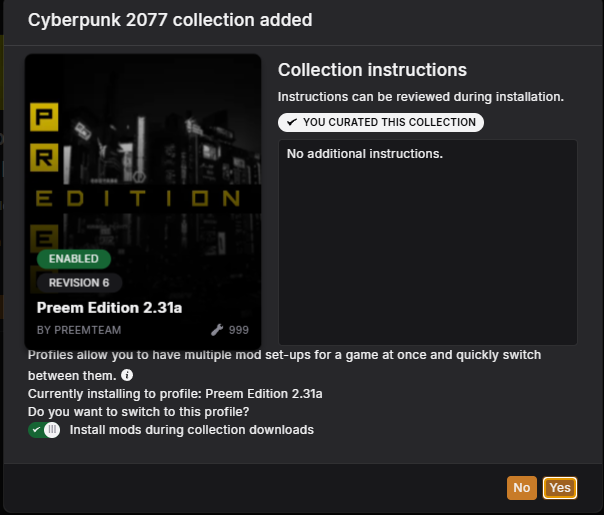
One more quick popup will appear, just click Yes.
📷 Show me
- Confirmed the final popup
Post-install checks#
Once the update itself is done, run through these to make sure everything came through clean.
Post Install: Clear Cache
Once the collection has confirmed it's updated, head over to your Cyberpunk 2077\r6\cache folder and delete its contents, don't delete the folder itself, just what's inside it.
📷 Show me
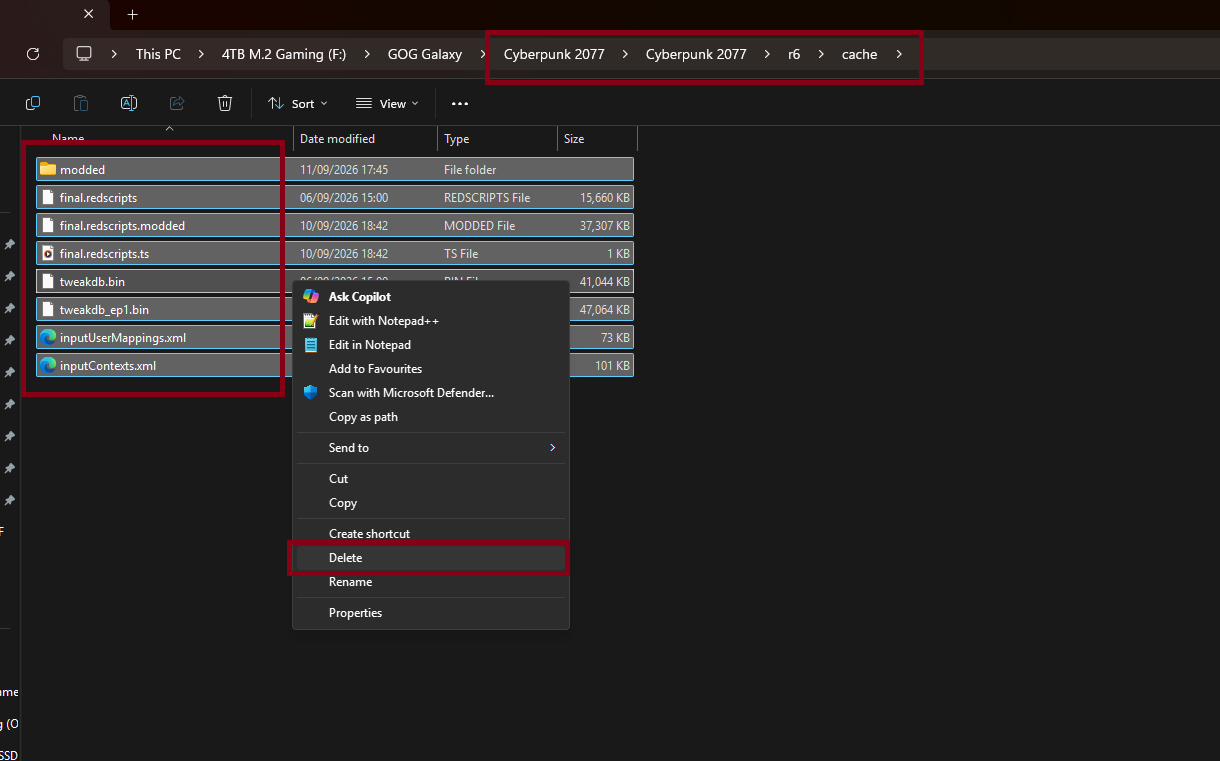
- Cleared the contents of
r6\cache
Post Install: Verify Game Files
After updating the collection and clearing the cache, go back into Steam/GOG/Epic Games (wherever the game is installed) and verify the game files.
📷 Show me
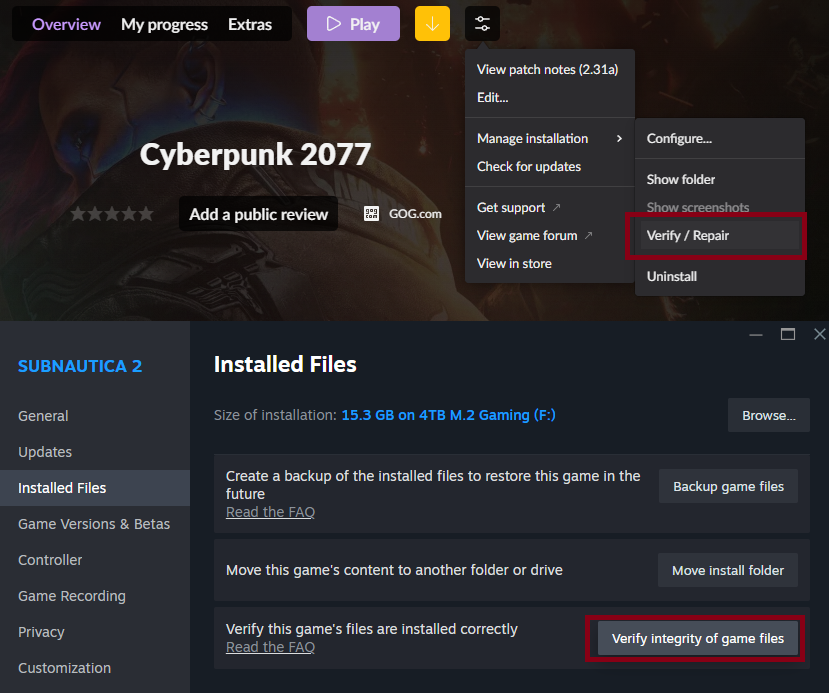
- Verified game files through the platform launcher
Post Install: Confirm game loads
Boot into the game. If you have no issues, well done, you've successfully updated your Preem Edition. If you can't, or you're getting crashes, see below.
Getting Redscript compilation errors?
This is usually caused by lingering outdated mod versions still being active, often from forgetting to select "remove mods" in Step 6, or from installing something manually outside of Vortex. Fix it with a Clean Install.
Getting flatline errors?
This is a common bug that can happen after altering game files. As strange as it sounds, most flatline errors are fixed by simply restarting your PC, a full Windows restart cycle seems to clear it. ("Have you tried turning it off and on again?", yes, really.)
Still having issues?
Reach out on the Preem Team Discord, or create a GitHub Issue so we can take a look.
- Confirmed the game boots correctly on the updated revision
Post Install: Re-enable Personal Mods
We recommend confirming the step above, before re-enabling your personal mods, that way you know the update itself was successful, so if something breaks after adding your mods back, you know it's likely a conflict with one of them rather than the update itself.
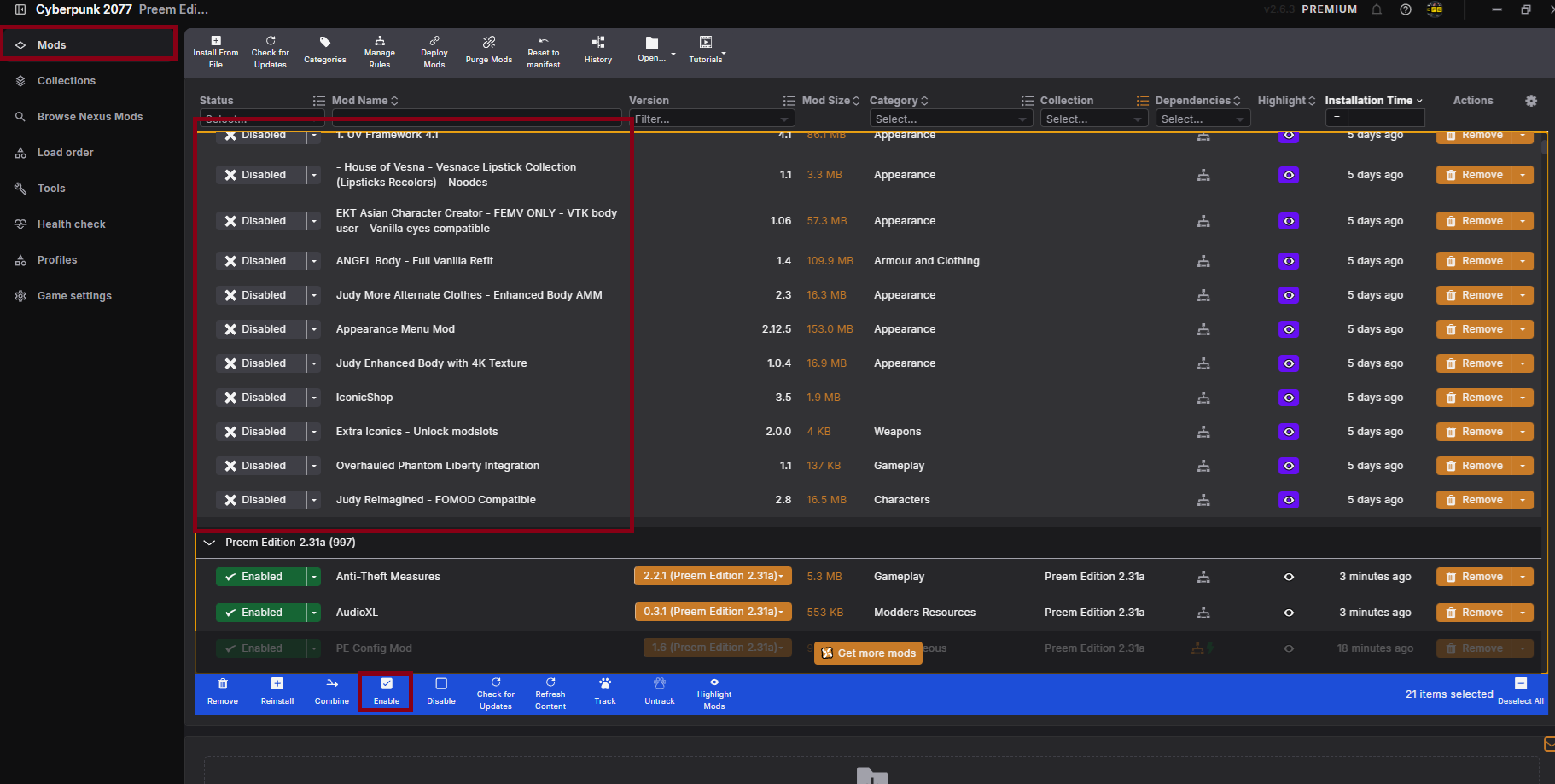
Back in the Mods tab, your highlighted personal mods will be listed as "Disabled", simply re-enable them.
📷 Show me
Warning
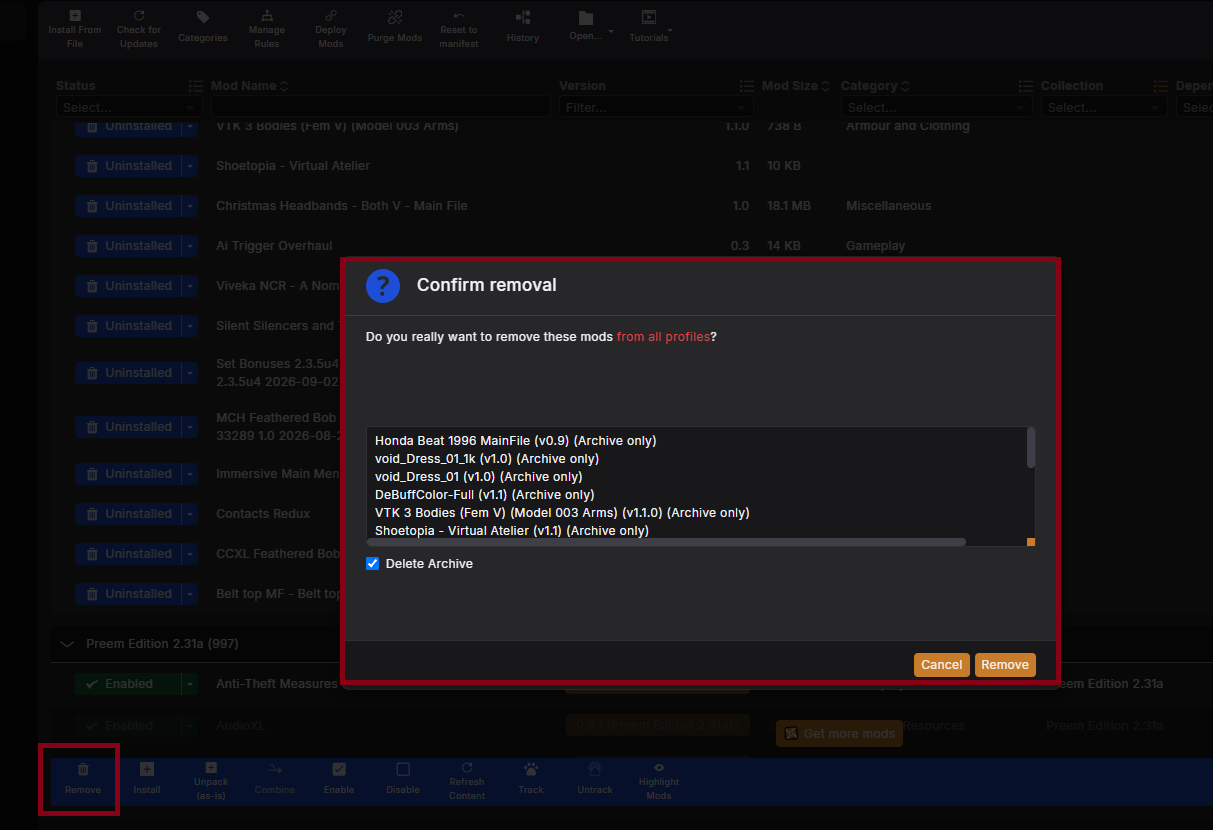
Mods listed as "Uninstalled" were removed during the update. You can decide whether to re-add them, but make sure whatever you bring back won't conflict with the recent update, otherwise, use "Delete Archive" to clean up your Vortex.
- Re-enabled personal mods and confirmed everything still works
You're up to date
That's it, you're running the latest Preem Edition revision with your personal mods back in place.