HOW TO BISECT // ISOLATING THE FAULT#
> RUNNING BINARY SEARCH...> TARGET: THE ONE MOD RUINING YOUR NIGHT
In short, bisecting is a method to identify mods in the collection that could be causing issues, crashes, or glitches. The basic premise is to chunk-enable mods bit by bit until you either reproduce the issue, or rule enough mods out that only one suspect is left.
Check this before starting
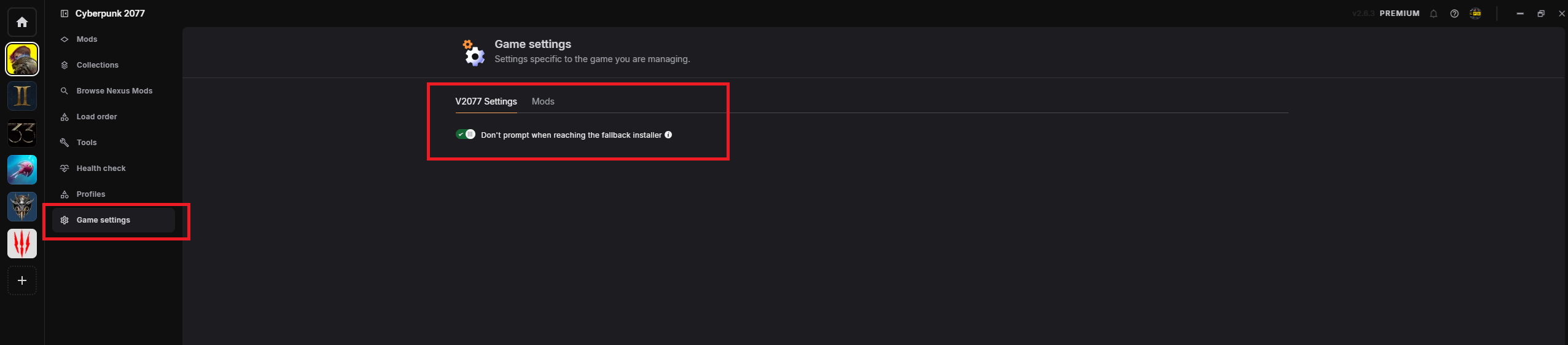
Before getting started, double check you have the correct V2077 settings inside of Vortex.
Check the V2077 settings so "Don't prompt when reaching fallback installer" is ON.
If your settings match the image below, you're good to proceed with bisecting your collection.
📷 Show me
Overview checklist#
Use this as your master checklist. Each item is explained in detail below.
- Verified my V2077 settings match what's required
- (Optional) Performed a Clean Install
- Disabled all mods
- Enabled core mods (Modders Resources) and confirmed they aren't the issue
- Enabled categories one at a time until the issue reappeared
- Chunk-enabled mods within the guilty category to find the exact mod
Step-by-step bisecting#
Tick a step off once you've finished it — your progress is saved in this browser, so it's still here if you close the tab and come back later.
Step 0 (Optional): Clean Install
This step isn't super important, but it can rule out the game itself as an issue. Following the Clean Install guide to remove all mod traces can help identify whether the game is to blame, or the collection (a mod inside the collection).
- I performed a clean install, or decided to skip this step
Tip
If you're confident the issue is mod-related (or you don't want to reinstall), skip straight to Step 1.
Step 1: Disable all mods
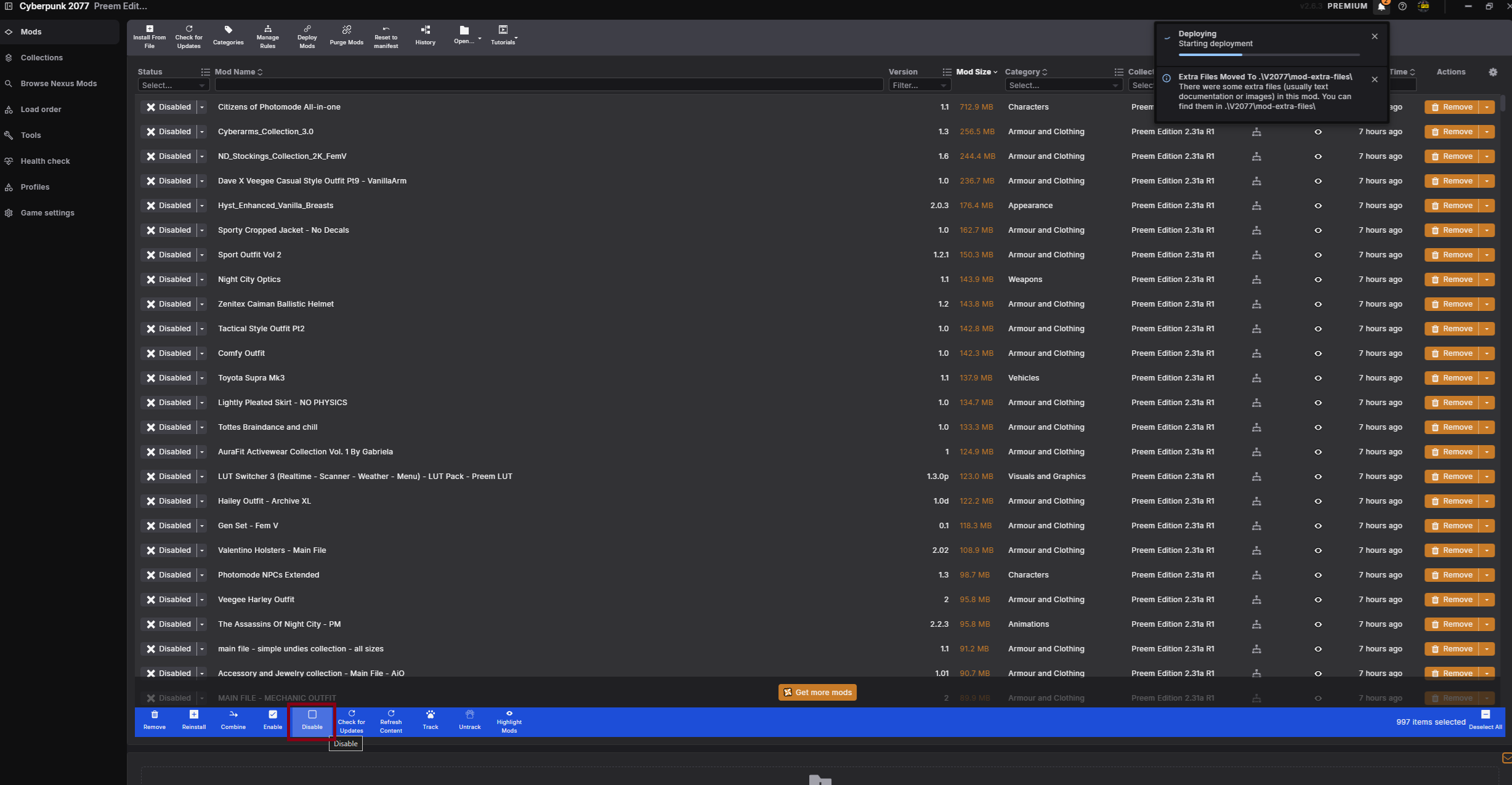
If you don't want to clean install, first what you want to do is disable all the mods.
- In Vortex, under Mods, select them all (
Ctrl+A). - At the bottom bar, select Disable.
This will start your bisect process with nothing enabled. Now move onto Step 2.
- All mods are disabled
📷 Show me
Step 2: Enable core mods
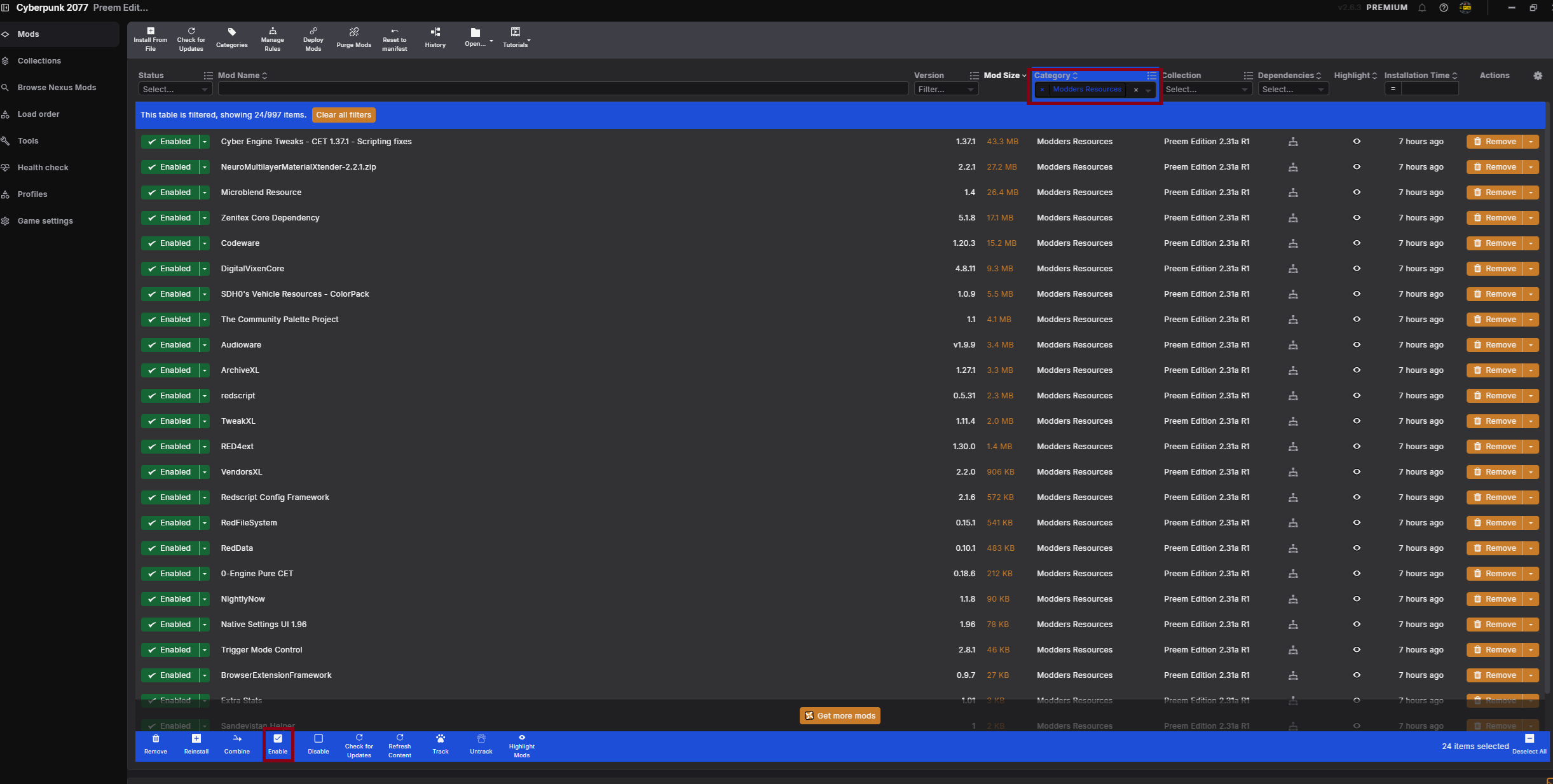
Now that you've either done a Clean Install or disabled all mods in Vortex, in the Mods tab, under the Categories section, click the dropdown and select Modders Resources, then enable them all.
This is required for a successful bisect, as most of the mods depend on these being present in order to function. Enabling them first ensures the core framework mods work as intended, and rules them out as the culprit.
- If you enable these mods and still crash, then likely a core mod isn't installed properly.
-
If these are enabled and the game boots fine, great — it's not a core mod causing the issue.
-
Core mods (Modders Resources) enabled and game boots fine
📷 Show me
Step 3: Enabling categories
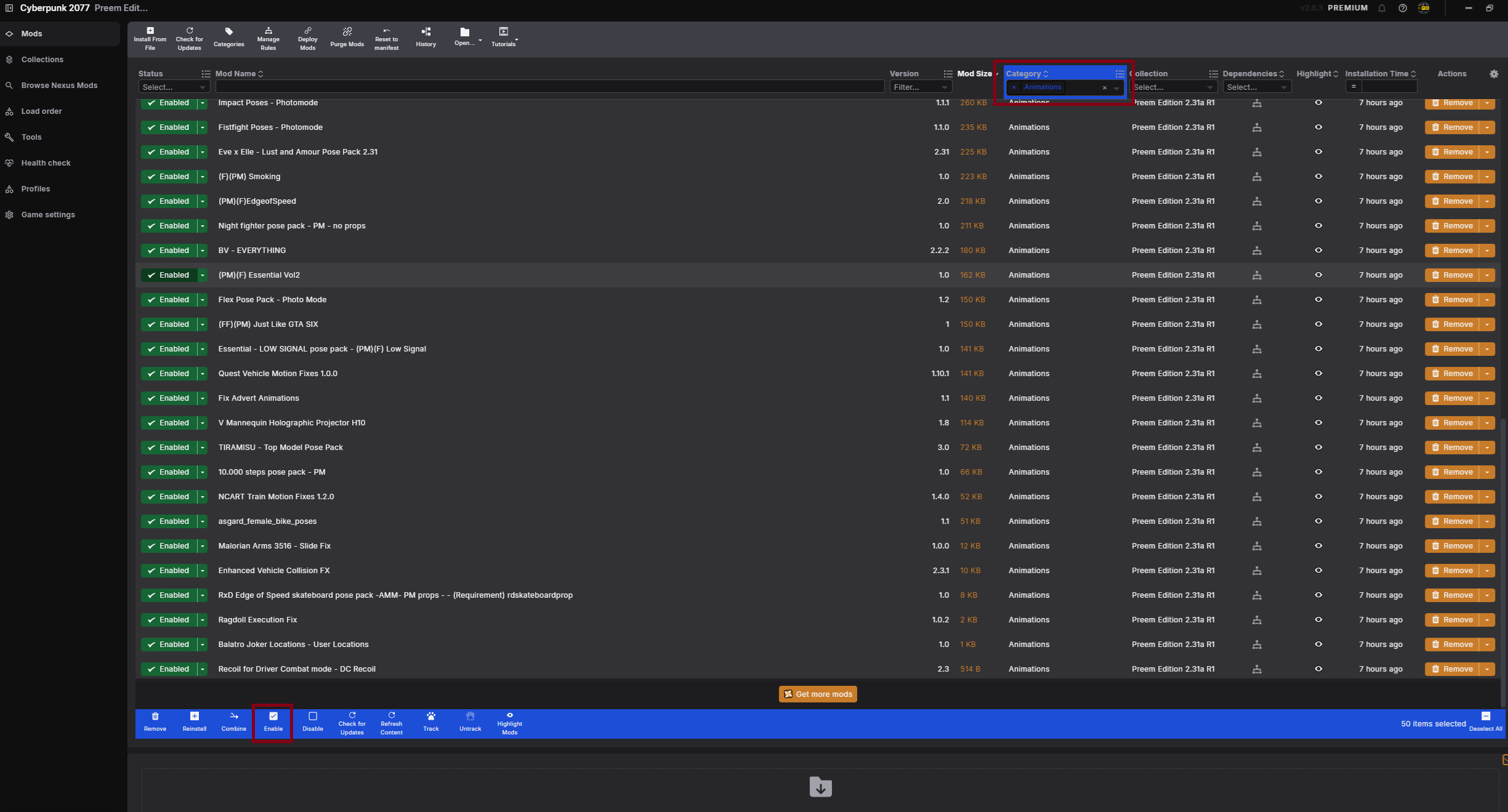
Now you've confirmed the core mods aren't the problem, it's time to go category by category and enable them one at a time until you can replicate the crash/issue.
- Start with Animations — enable all the mods in that category, boot the game, and double check the issue isn't there.
- If it's not crashing, you know it's not an animation mod. Close the game and move onto the next category.
- Repeat for each category until you run into the crash/issue — then you'll know the rough area the problem lies in.
Example: you begin to crash/experience your issue after enabling the Utilities category — bingo, you now have your chunk of potential mods.
Ignore the Cyberpunk 2077 category
Every mod is listed under this category, so enabling it will guarantee you crash and get you nowhere. Do not enable this category.
- Found the category that reproduces the issue
📷 Show me
Step 4: Identified the category
Now that you've narrowed down which category the problem is in, it's time to chunk-enable all the mods in that category until you replicate your crash/issue. (For the example above, the issue was in Utilities.)
- Filter by that category, enable one half of the mods inside it, and leave the other half disabled.
- Boot the game and see if the crash/issue is present.
- If it's not, that half is fine — go ahead and enable half of the remaining disabled mods too (now ¾ of the category is enabled). Boot the game and repeat as required until you narrow in on the mod.
- If it does crash, you're close — do the reverse: disable half of the mods you just enabled, and repeat until you're left with the one mod causing your crash.
Worked example
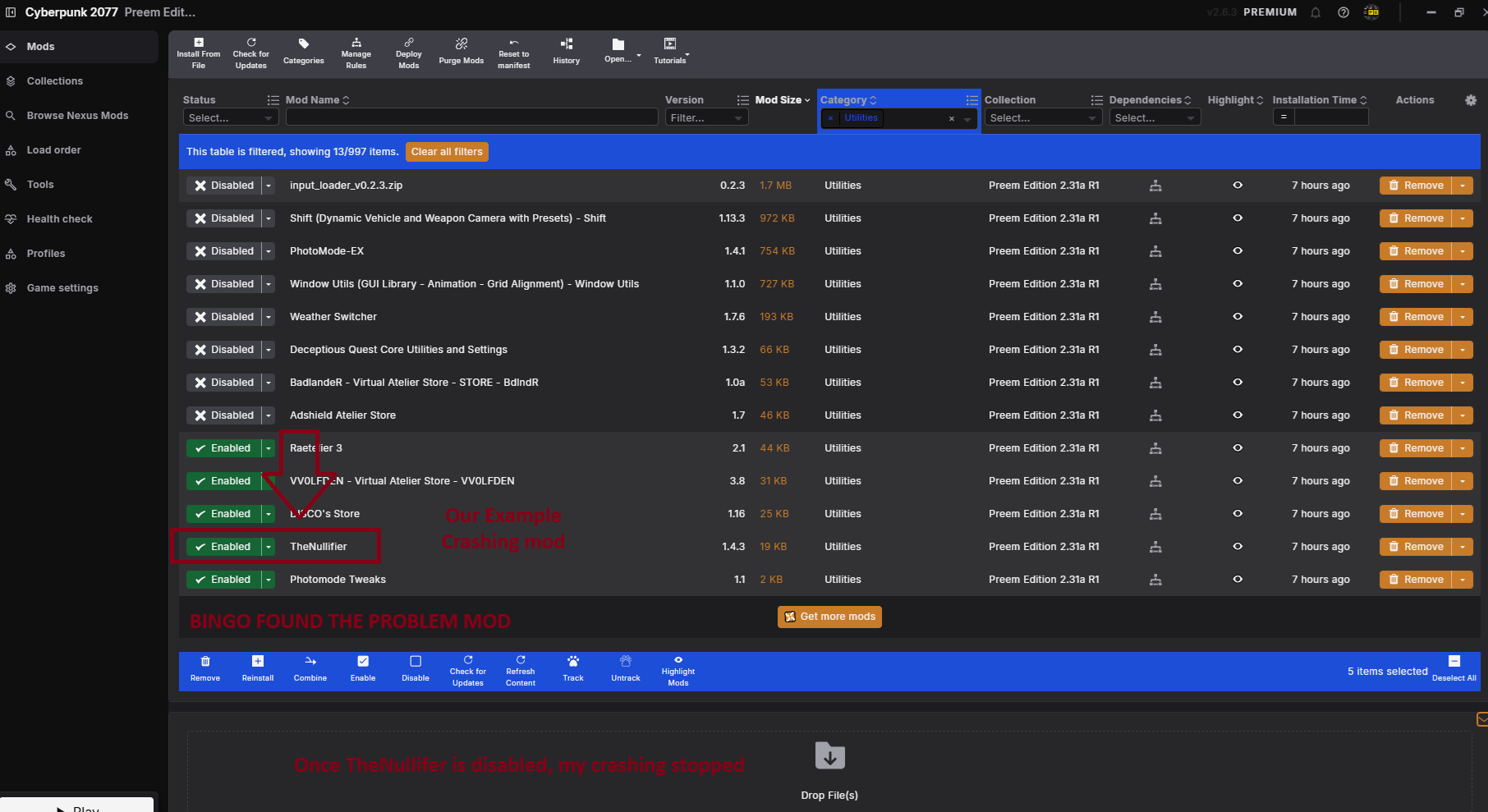
Say the problem mod is The Nullifier, and it's enabled — you crash when loading the game.
You disable one half of the enabled mods (say, "input_loader_v0.2.3" through "Adshield Atelier Store"), leaving the other half enabled. The Nullifier is still enabled, so you still crash — you're getting close. Down to 5 mods, you check one by one until you stop crashing, and there it is: disabling The Nullifier stops the crash.
Bingo — found the problem mod.
Once you've identified the mod responsible, confirm the fix: re-enable every mod except the one you bisected. If you don't crash/have the issue anymore, you've successfully bisected your collection.
If you still crash, multiple mods might be causing issues, and you'll need to keep bisecting to find the rest.
- Identified the single mod causing the issue
- Confirmed the fix by re-enabling everything except that mod
📷 Show me
Bisected!
That's it — you've found your problem mod. Report it in the Preem Team Discord so staff can look into a fix or flag a known conflict.
Still crashing after bisecting?
Something more unusual is going on. Head to Troubleshooting or Common Problems, or file a proper bug report.